/ Content
We covered the basics in the first post and configuration in the second. Maybe there was a point or two most people hadn't heard of or used before. Today's post should hopefully be almost all new things. We are going to cover both debugging with Tinker and building native PsySH commands, along with some real examples from production.
Debugging without the X
Xdebug is probably the most popular, yet troublesome, plugin for PHP developers. You have to configure it, you have to tweak a bunch of settings in your editor, you have to install a browser plugin usually, and then there are usually other issues if you are using Herd or another tool that is injecting some code. Don't get me wrong, once it is set up and working, you can debug with ease. Set your breakpoints, check variable values, catch your errors and get moving.
If you are like most developers, however, it is usually easier to throw in a bunch of dump(), dd(), or ray() commands to debug. I don't have time to set up Xdebug, get it working, and then turn it back off so it doesn't interfere with other things.
PsySH actually can do what Xdebug does, and it is stupid easy. All you need to do is add \Psy\sh(); to create a breakpoint in your code where you want it. When your code runs, it interrupts the flow, opens Tinker, and you can play around with the registered variables at that point. Check the following example:
public function calculateDiscount(Order $order, User $user, ?Coupon $coupon = null): array
{
    $subtotal = $order->items->sum('price');
    $loyaltyMultiplier = $user->loyalty_tier->discountMultiplier();
    $couponDiscount = $coupon?->calculateFor($subtotal) ?? 0;
    $finalDiscount = min($subtotal, ($subtotal * $loyaltyMultiplier) + $couponDiscount);

    return [
        'subtotal' => $subtotal,
        'discount' => $finalDiscount,
        'total' => $subtotal - $finalDiscount,
    ];
}
This function takes multiple parameters, does several manipulations and then returns an array of data. It is hard to see exactly what is happening when the final number comes out wrong. So you can throw \Psy\sh() in there, and it creates your breakpoint:
public function calculateDiscount(Order $order, User $user, ?Coupon $coupon = null): array
{
    $subtotal = $order->items->sum('price');
    $loyaltyMultiplier = $user->loyalty_tier->discountMultiplier();
    $couponDiscount = $coupon?->calculateFor($subtotal) ?? 0;

    \Psy\sh();

    $finalDiscount = min($subtotal, ($subtotal * $loyaltyMultiplier) + $couponDiscount);

    return [
        'subtotal' => $subtotal,
        'discount' => $finalDiscount,
        'total' => $subtotal - $finalDiscount,
    ];
}
When this function runs, Tinker automatically opens, and you can interact with the code normally:
Psy Shell v0.12.8 (PHP 8.4 — cli) by Justin Hileman
> $subtotal
= 249.97

> $loyaltyMultiplier
= 0.15

> $couponDiscount
= 30.0

> $coupon->code
= "SPRING20"

> $subtotal * $loyaltyMultiplier
= 37.4955
When you are finished, close the terminal or type exit and the code resumes. This debugging is more of a "pause and inspect" style. It is a step above dumping and dying, or just logging data. You can check values and interact with other methods. It still lacks many of the advanced features that Xdebug brings to the table, but it is easier to get started with.
A Step Above Artisan Commands
The Laravel docs detail how to add your Artisan Commands into Tinker by publishing the config and registering commands. They work exactly as you would expect them to work. Register the \Illuminate\Foundation\Console\JobMakeCommand::class in the config file, and you can call make:job inside Tinker. It works, it is interactive, but it isn't useful. I want useful commands!
The problem I faced
We used Tinker in production to help debug issues customers were having. Often times it involved making the exact same set of calls over and over and over. We take the model id, we load the model, we load 3 different relations, we load 2 different API SDKs with the customer's OAuth token, and then we are set to debug most issues that we would face. All in all, it is maybe 5-10 lines of Tinker. Not a lot, but definitely beyond the ability of Raycast and macros to solve since some logic is involved.
I wanted to run a command and give it a value: instance 10. I wanted the command to come back with every variable I needed populated: $instance, $account, $user, $config, $mailgun, $twilio. If their instance used SMTP instead, or Vonage for SMS, I wanted $smtp and/or $vonage instead. In fact, we had a dozen different SDKs we supported and I wanted Tinker to figure out which ones to initialize and give them to me.
Command vs Command
Digging deeper into how Tinker works, Laravel's Tinker Service Provider takes a few of their default commands, plus any you add in the config (if you published the config), and then adds them to the Psy Shell application to make them available. There is no modification to any of the commands. If you look at \Laravel\Tinker\Console\TinkerCommand, you can see it grabs the commands array from config, instantiates them, and calls $this->getApplication()->add() on each one.
Both Artisan and Psy Shell commands extend Symfony's base Command. This is why Artisan commands play very nicely with Tinker. Anything you can do in an Artisan command works perfectly when run inside Psy Shell. Where they differ is the Application instance. Laravel doesn't really set or overwrite the Symfony Console Application, but Psy Shell does. The Psy\Command\Command base class has a getApplication() method that returns the Psy\Shell instance instead of the Symfony Application.
The Psy Shell provides extra methods and options above what Symfony's Application gives you. Tapping into the Shell allows you to interact with the shell (and code/input buffer) at a much lower level. Think about the native commands Psy Shell provides out of the box: edit and sudo. They allow you to write some code, then execute it later, keeping those variables in memory.
The edit command
The edit command (\Psy\Command\EditCommand) opens your editor, lets you write code, and when you save and quit it takes that code and adds it as input to the Shell via $this->getApplication()->addInput(). The shell then executes it as if you had typed it at the prompt.
The sudo command
The sudo command (\Psy\Command\SudoCommand) takes the snippet after the word "sudo", parses it to bypass visibility restrictions via reflection, and adds the modified code to the Shell. It uses $this->getApplication()->addCode() to inject the transformed code back into the execution pipeline.
A little Easter Egg here that isn't in the sudo --help: If you type sudo !!, it will re-run the last thing you typed in sudo mode.
The overall gist of this is that the Psy\Command\Command class allows you to add code to the input buffer, that will then be executed by the shell as if someone had typed it naturally into the prompt. This is exactly what I wanted to do.
Structuring the command
The command itself isn't any different than a normal Laravel or Symfony command. You just extend the abstract Psy\Command\Command. You specify the command signature and help content. You set up the execute() method to handle everything. Inside the execute() method, you read your arguments, and then you set up a big block of text that gets executed, and send that to the Psy Shell input buffer. Here is a quick example:
protected function execute(InputInterface $input, OutputInterface $output): int
{
    $id = $input->getArgument('integration_id');
    $suffix = $input->getArgument('suffix');

    $this->getApplication()->addCode('
    $int'.$suffix.' = \App\Models\Integration::with("company")->find('.$id.');
    $company'.$suffix.' = $int'.$suffix.'?->company;
    $sdk'.$suffix.' = $int'.$suffix.'?->getSdk();
    $crm'.$suffix.' = $int'.$suffix.'?->getClient();

    echo "\n";
    if ($int'.$suffix.' === null) {
        echo "Integration not found.";
    } else {
        echo "Integration set: \t\$int'.$suffix.'\n";
        echo "Company set: \t\t\$company'.$suffix.'\n";
        echo "Sdk set: \t\t\$sdk'.$suffix.' (".$int'.$suffix.'->type.")\n";
        echo "Client set: \t\t\$crm'.$suffix.' (".$int'.$suffix.'->type.")\n";
    }
    echo "\n";

    ', false);

    return 0;
}
Yes, this is string concatenation building PHP code. It isn't pretty, but it works. The addCode() method takes the string, and the shell executes it in the current scope. The $suffix argument lets me load multiple integrations side by side. I can run ic 123 to get $int, $company, $sdk, and $crm. Then run ic 222 foo and get $intfoo, $companyfoo, $sdkfoo, and $crmfoo. All of them coexist in the same session.
Here is what it looks like in practice:
> ic 123
Integration set:   $int
Company set:       $company
Sdk set:           $sdk (HubSpot)
Client set:        $crm (HubSpot)

> ic 222 foo
Integration set:   $intfoo
Company set:       $companyfoo
Sdk set:           $sdkfoo (MailCoach)
Client set:        $crmfoo (MailCoach)
Hitting the up arrow after this runs will show the entire block of code that was added to the shell:
$int = \App\Models\Integration::with("company")->find(123);
$company = $int?->company;
$sdk = $int?->getSdk();
$crm = $int?->getClient();

echo "\n";
if ($int === null) {
    echo "Integration not found.";
} else {
    echo "Integration set: \t\$int\n";
    echo "Company set: \t\t\$company\n";
    echo "Sdk set: \t\t\$sdk (" . $int->type . ")\n";
    echo "Client set: \t\t\$crm (" . $int->type . ")\n";
}
echo "\n";
Registering the command
You have two options for registering custom commands. If you've published the Tinker config with php artisan vendor:publish --provider="Laravel\Tinker\TinkerServiceProvider", you can add your commands to the commands array in config/tinker.php:
'commands' => [
    App\Console\Tinker\IntegrationCommand::class,
],
Alternatively, you can register them in your .psysh.php config file, which we set up in the last post:
return [
    'commands' => [
        new App\Console\Tinker\IntegrationCommand(),
    ],
];
The difference: config/tinker.php takes class names as strings (Laravel resolves them), while .psysh.php takes instantiated objects. Either works. I prefer .psysh.php because it keeps all my Tinker customization in one place.
Toggling the SQL debugger
Remember the SQL debugger we wrote in the last post? It listens for DB queries and spits out SQL onto the screen every time one runs. Super useful, but maybe it gets annoying seeing that on every single query when you're doing something unrelated. It would be way cooler to toggle it on and off without having to edit .psysh.php. Well, let's build a command for that.
Start with the basics. We extend Psy\Command\Command, set the name to sql-debug with sd as an alias:
namespace App\Console\Tinker;

use Illuminate\Support\Facades\DB;
use Psy\Command\Command;
use Symfony\Component\Console\Input\InputInterface;
use Symfony\Component\Console\Output\OutputInterface;

class ToggleSqlCommand extends Command
{
    protected bool $enabled = false;

    protected function configure(): void
    {
        $this
            ->setName('sql-debug')
            ->setAliases(['sd'])
            ->setDescription('Toggle SQL query debugging on or off.');
    }
Now here's the trick. If we set up the DB listener in the execute() method, it would add a new listener every time we run the command. Instead, we register the listener once in the constructor and use the $enabled property to control whether it actually outputs anything:
    public function __construct()
    {
        parent::__construct();

        $this->bootListener();
    }

    protected function bootListener(): void
    {
        DB::listen(function ($query) {
            if (! $this->enabled) {
                return;
            }

            $sql = $query->sql;

            foreach ($query->bindings as $binding) {
                $value = is_numeric($binding) ? $binding : "'{$binding}'";
                $sql = preg_replace('/\?/', $value, $sql, 1);
            }

            $time = number_format($query->time, 2);

            echo "\n\033[36m{$sql}\033[0m";
            echo "\n\033[90m-- {$time}ms\033[0m\n";
        });
    }
The execute() method just flips the boolean and tells you the current state:
    protected function execute(InputInterface $input, OutputInterface $output): int
    {
        $this->enabled = ! $this->enabled;

        $output->writeln(
            '<info>SQL Debugging is now </info><comment>'.($this->enabled ? 'Enabled' : 'Disabled').'</comment>'
        );

        return 0;
    }
}
Now in Tinker:
> sd
SQL Debugging is now Enabled

> User::find(1);

select * from `users` where `users`.`id` = 1 limit 1
-- 0.84ms

= App\Models\User {#5678 ...}

> sd
SQL Debugging is now Disabled

> User::find(2);
= App\Models\User {#5679 ...}
If you were using the always-on version from the .psysh.php config, you can remove that DB::listen() block and use this command instead. If you register this command, the listener gets set up when PsySH boots but stays silent until you toggle it on. Best of both worlds.
Hooking up FX
You are working with Laravel's Http client, and you are getting a LOT of JSON data back. You are copying that data, pasting into a viewer, or pretty-printing it, or just using the less pager to traverse it. I love using viewers to expand and collapse nodes I don't need and compare things quickly at a glance. That is why I am usually copying and pasting elsewhere. It would be nice to have a command that allows me to use the terminal app fx to view JSON data quickly and easily.
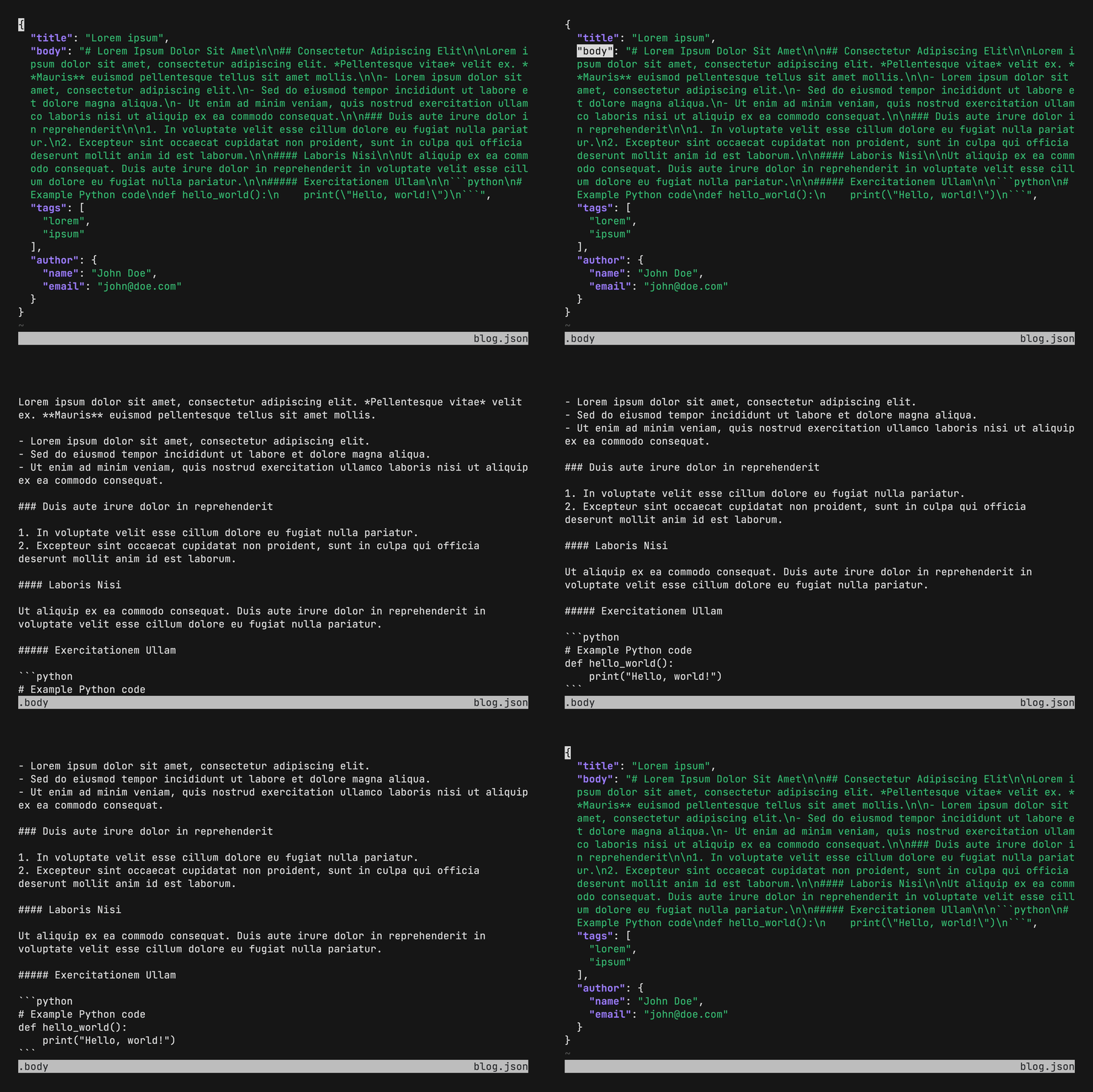
To accomplish this, I used the edit and sudo commands again as my template. edit opened another application inside Tinker that you could interact with, and then close when done. sudo allowed me to write code as an argument, parse it, and execute it. I want to do both. In fact, I want to support variables, a string of JSON data, or just the latest result. So let's set that up.
protected function configure(): void
{
    $this
        ->setName('fx')
        ->setDefinition([
            new CodeArgument('json', CodeArgument::OPTIONAL, 'A json object or string.', '$_'),
        ])
        ->setDescription('Open the fx terminal application to explore JSON data.')
        ->setHelp('Run <info>brew install fx</info> to install fx if you do not have it already.');
}
The CodeArgument is Psy\Input\CodeArgument. It is what several Psy commands use. The default value if it isn't set is $_ which literally gives us the last result. So that checks off that item on our list.
The sudo command extends the ReflectingCommand, which gives access to the method resolveCode(). This method allows us to take any string that is passed as an argument, and find the code. It is essentially like an eval() via reflection. So when I do:
> $a = (object) ['foo' => 'bar'];
> fx $a
My command gets the string "$a" as the argument. I don't care about the string, I want the value. This is what resolveCode() does. I can use $json = $this->resolveCode($input->getArgument('json')); in my execute, and $json will be equal to $a from the shell. Knowing this, we can start our execute() method with the following:
$target = $input->getArgument('json');

try {
    $json = $this->resolveCode($target);
} catch (\Throwable $e) {
    $output->writeln('<error>Error evaluating JSON input: '.$e->getMessage().'</error>');

    return 1;
}

if ($json === null) {
    $output->writeln('<error>Null provided.</error>');

    return 1;
}

if (is_string($json) && json_decode($json) === null) {
    $output->writeln('<error>Invalid JSON string provided.</error>');

    return 1;
} elseif (is_array($json) || is_object($json)) {
    $json = json_encode($json);
} else {
    $output->writeln('<error>Input must be a JSON string or object.</error>');

    return 1;
}
If the data passed wasn't parseable via resolveCode, we exit. If the value was null, we exit. If the value was a string and not a JSON string, we exit. If the value was an array or object, we json_encode it, otherwise we exit.
Now, leveraging the things we saw in the edit command, lets open up fx using proc_open:
$escapedString = \escapeshellarg($json);
$env = array_merge(getenv(), [
    'FX_SHOW_SIZE' => true,
    'FX_LINE_NUMBERS' => true,
    'FX_THEME' => 9,
    'PATH' => $_SERVER['PATH'] ?? '',
]);
$proc = \proc_open("echo {$escapedString} | fx", [\STDIN, \STDOUT, \STDERR], $pipes, null, $env);
\proc_close($proc);

return 0;
That is it! We add some environment vars to configure fx, escape the JSON string, open a process and pipe the JSON into fx. This opens the fx application and you can browse, search, expand and collapse nodes to your heart's content. When you exit fx, you are right back in Tinker where you left off. Nothing has changed.
All together, here is the full class:
namespace App\Console\Tinker;

use Psy\Command\ReflectingCommand;
use Psy\Input\CodeArgument;
use Symfony\Component\Console\Input\InputInterface;
use Symfony\Component\Console\Output\OutputInterface;

class FxCommand extends ReflectingCommand
{
    protected function configure(): void
    {
        $this
            ->setName('fx')
            ->setDefinition([
                new CodeArgument('json', CodeArgument::OPTIONAL, 'A json object or string.', '$_'),
            ])
            ->setDescription('Open the fx terminal application to explore JSON data.')
            ->setHelp('Run <info>brew install fx</info> to install fx if you do not have it already.');
    }

    /**
     * @return int 0 if everything went fine, or an exit code
     *
     * @throws \InvalidArgumentException when both exec and no-exec flags are given or if a given variable is not found in the current context
     * @throws \UnexpectedValueException if file_get_contents on the edited file returns false instead of a string
     */
    protected function execute(InputInterface $input, OutputInterface $output): int
    {
        $target = $input->getArgument('json');

        try {
            $json = $this->resolveCode($target);
        } catch (\Throwable $e) {
            $output->writeln('<error>Error evaluating JSON input: '.$e->getMessage().'</error>');

            return 1;
        }

        if ($json === null) {
            $output->writeln('<error>Null provided.</error>');

            return 1;
        }

        if (is_string($json) && json_decode($json) === null) {
            $output->writeln('<error>Invalid JSON string provided.</error>');

            return 1;
        } elseif (is_array($json) || is_object($json)) {
            $json = json_encode($json);
        } else {
            $output->writeln('<error>Input must be a JSON string or object.</error>');

            return 1;
        }

        $escapedString = \escapeshellarg($json);
        $env = array_merge(getenv(), [
            'FX_SHOW_SIZE' => true,
            'FX_LINE_NUMBERS' => true,
            'FX_THEME' => 9,
            'PATH' => $_SERVER['PATH'] ?? '',
        ]);
        $proc = \proc_open("echo {$escapedString} | fx", [\STDIN, \STDOUT, \STDERR], $pipes, null, $env);
        \proc_close($proc);

        return 0;
    }
}
Where to go from here
That is three posts' worth of Tinker and we've gone from basic shell navigation to writing our own commands that hook into PsySH's internals. The pattern is always the same: extend Psy\Command\Command (or ReflectingCommand if you need to resolve variables), build a string of code or interact with a process, and let the shell handle the rest.
I use these commands every day. The integration loader saves me 2 minutes every time a support ticket comes in. The SQL toggle keeps my screen clean until I need it. And the fx command has replaced my workflow of copying JSON out of Tinker and into a browser tool. They're small things individually, but they add up when you're in Tinker for hours a day.
If you've been following along, you now have a .psysh.php config file with class aliases, a SQL listener (toggable now), and at least the blueprint for building your own project-specific commands. The PsySH codebase is well-organized and the existing commands are great templates. Pick something repetitive you do in Tinker, look at how edit or sudo handles a similar problem, and build your own.